Get two things ready first
An iPhone or iPad that can sign in to the App Store, and materials from your provider. Those are usually one of three: a subscription URL, a QR code, or a set of fields that name the protocol (address, port, password or UUID).
Without the second item, an installed app still stays on Not Connected. A subscription URL is usually a long string that starts with http or https. A single server is a hostname plus a port—not a full URL. Do not mix the two.
You do not need a rule file the first time, and you do not need iCloud yet. Of the four tabs, use Home only.
How to install official Shadowrocket
Open the App Store and search Shadowrocket. On the product page, read the text first, then the icon. All three must match: the app name is Shadowrocket, the developer is Shadow Launch Technology Limited, and the app ID is id932747118. The official icon is a line-drawn rocket on white, from teal to purple. If the name is close but the icon is a globe or a shield, do not install it. When you are unsure, trust the developer name.
This is a one-time client purchase. It does not include servers or data. If your region does not list it, search again with an Apple ID registered for another region. Do not download an IPA, do not use a shared account, and do not scan an install code on a non-Apple domain. Those packages often fail system VPN permission.
After install, the official icon appears on the Home Screen. Open it from there. Do not flip the connection toggle the moment it opens.
Done here: the official icon is on the Home Screen, and the app opens.
Allow iOS to add a VPN
On first launch, iOS asks to add a VPN configuration. Tap Allow, then confirm with Face ID, Touch ID, or a passcode. iOS is protecting a system slot. This is not an app login, and there is no account to fill in.
After you allow it, Settings → General → VPN & Device Management (the label can vary by iOS version) should list Shadowrocket. Seeing that row only means the app may build a tunnel. It does not mean you are connected. Home should still say Not Connected.
If you tapped Don't Allow: background the app and open it again. iOS usually asks once more. If it still does not, delete the leftover VPN in Settings, then open the app again. If that still fails, confirm the App Store copy and restart the phone.
Do not flip the toggle yet. SERVER is still empty. Turning it on has nowhere to go.
Done here: the VPN is in Settings, and Home still says Not Connected.
Learn Home first
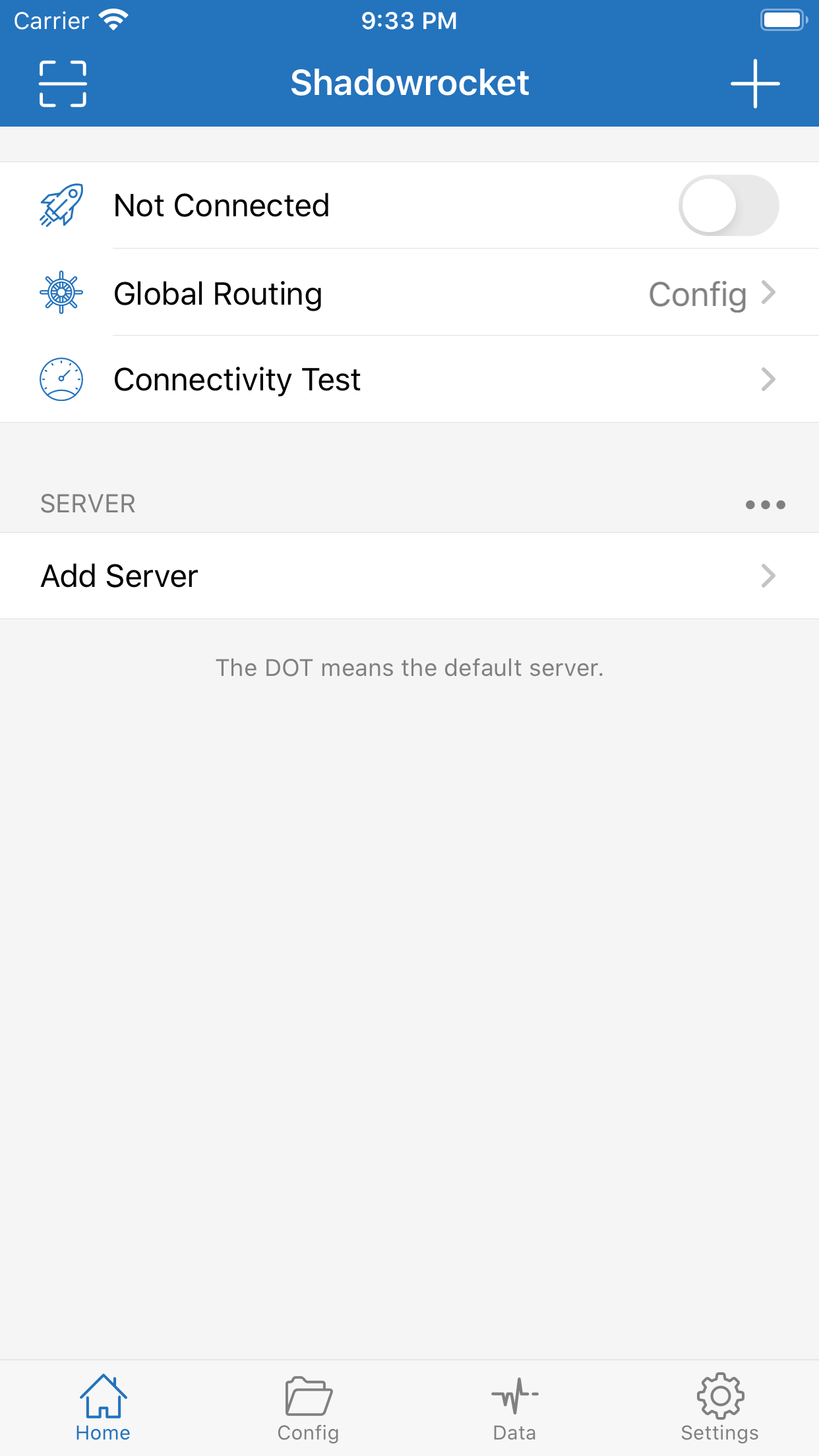
The title bar says Shadowrocket. Scan is on the left; + is on the right. The three rows below are the main controls. You will use all of them the first time:
- The first row is Not Connected and the toggle. It only opens or closes the tunnel. It does not care whether a server exists.
- The second row is Global Routing, usually followed by Config. Tap it to switch Config, Proxy, or Direct.
- The third row is Connectivity Test. It measures the path to the server—not how fast a site loads. You can skip it the first time.
Below that is SERVER. With no configuration it only shows Add Server and the line “The DOT means the default server.” After you add servers, the one with the dot is the default. The “…” on the right is the list menu. You do not need it the first time.
The bottom tabs are Config, Data, and Settings. Day to day you almost only need Home. Rules, backups, and logs live on those three tabs. You can skip them until you are connected.
How to add a Shadowrocket subscription
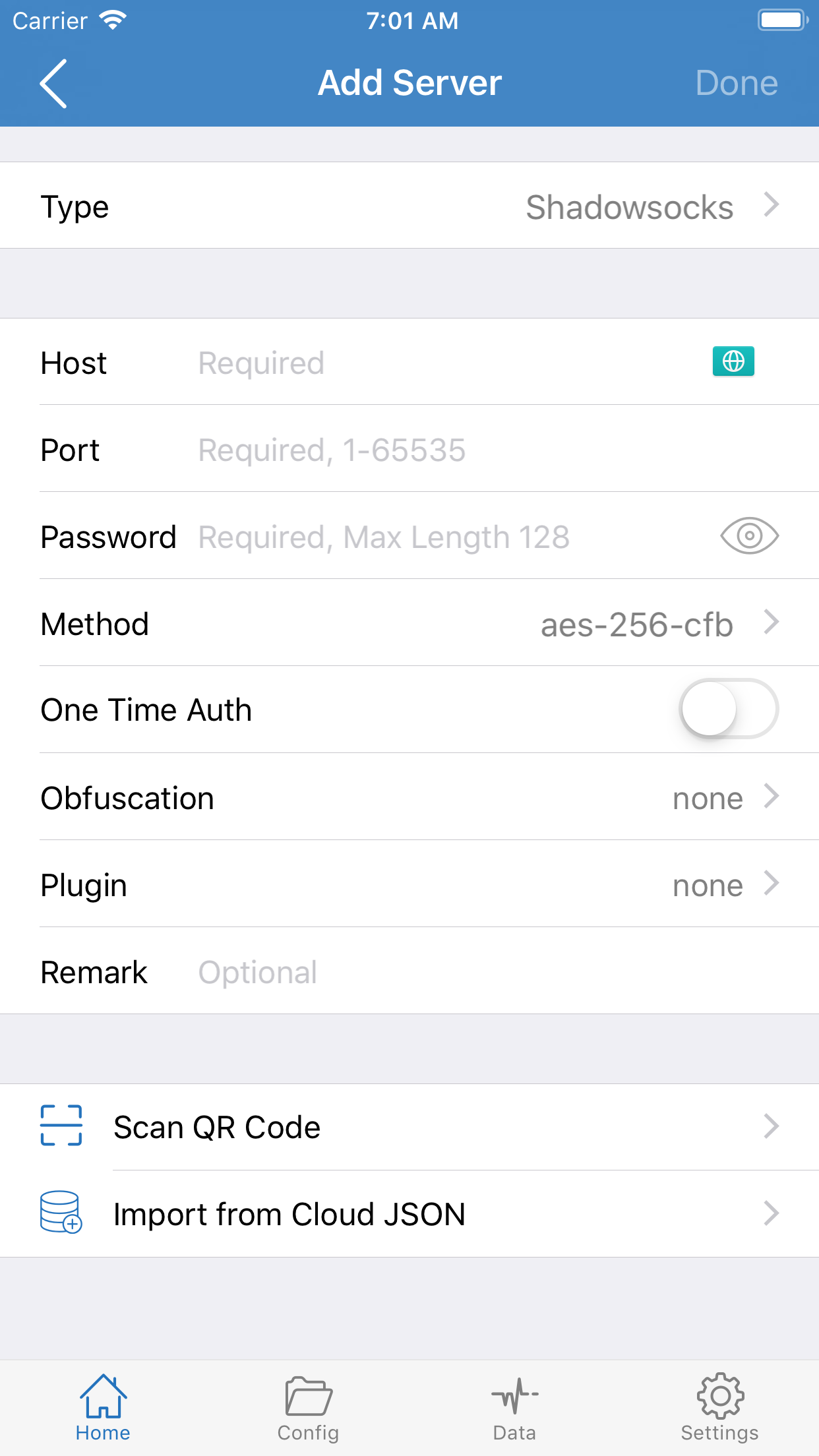
Tap + in the top right, or tap Add Server under SERVER. The first field is Type. Change Type before you fill the rest. If Type is wrong, complete fields still will not connect.
Your provider gave a subscription URL
Set Type to Subscribe and paste the whole URL. Put a name you recognize in Remark, then tap Done in the top right. Do not split this URL into Host or Port. The Host row is for a single server.
After you save, Home should list a batch of servers under SERVER. Later adds and removals come from updating the subscription. Do not edit rows by hand. If the subscription is dead or the list is empty, ask your provider. Do not reinstall the app.
They gave a QR code
On Add Server, scroll to Scan QR Code, or use scan on the left of the Home title bar. Point it at the code from your provider. After the scan, check that Type and Host are not empty, then save. The code must come from someone you trust.
They gave a set of fields
Set Type to the protocol they named, such as Shadowsocks, Vmess, or Trojan. Do not guess. Then fill the table they gave you:
- Host, Port (1–65535), and the password or UUID must match exactly. Watch spaces and capitalization.
- For Shadowsocks, also match Method. The UI default may be aes-256-cfb. Change it if theirs is different.
- Leave One Time Auth, Obfuscation, and Plugin off or none unless they asked.
Remark is only a display name. Write anything. Tap Done when you finish. Vmess and Trojan fields differ from Shadowsocks. Still follow their table.
After you add it, look at Home
SERVER should list one or more rows. Select one; a dot appears on the left. If you still see only Add Server, the save failed, Type is wrong, or the subscription is dead. Do not flip the toggle, and do not run a test yet.
Done here: SERVER lists servers, and one is selected.
Choose Config, then turn the toggle on
Tap the second row, Global Routing, and choose Config. That is everyday rule-based routing. Proxy sends everything through the proxy, to test whether this server works. Direct sends nothing, to test the phone network. Skip the last two the first time.
Confirm a server is selected, then flip the first-row toggle. A VPN icon only means the local tunnel is up. It does not mean the web works yet.
Open Safari and visit a site you already use. When that page loads, you are connected. Do not treat Connectivity Test as the answer: a healthy test with a blank page still needs a comparison; a very high number or a timeout means try another server, then Safari again.
Done here: the toggle is on, and that site opens in Safari.
If it will not connect, compare first
Do not reinstall yet, and do not edit rules on the Config tab yet.
Set Global Routing to Direct and open the same site. If Direct also fails, the phone Wi-Fi or cellular is the problem—turn the toggle off and check the network in Settings. If Direct works, the phone network is fine. The problem is the server or subscription: go back to Home, select another server, or ask your provider to refresh the subscription.
After the comparison, switch back to Config. If sites that already work without the proxy still open, but sites that need the proxy do not, that is usually the server, not a broken app. If you cannot add a VPN or the toggle does nothing, return to “Allow iOS to add a VPN” above, delete the leftover profile, and start that section again.
How to use it after you connect
Keep Config for everyday use. To change servers, tap another row in the SERVER list. You do not need to delete the old one. When you are done, turn the Home toggle off. With On Demand off, it will not connect by itself.
Servers in a subscription can expire or slow down. If the list is stale and many rows fail, update that subscription row. Do not reinstall the client. Moving to a new phone, exporting a backup, and tests and logs in Settings are in the tutorial. Open it when you need it. You do not have to read it first.
You can stop here. Of the four tabs, Home is the only one you need day to day.