Shadowrocket is a client, not a proxy service
“I bought the app” and “sites open” are not the same thing.
The client is Shadowrocket on the App Store. It creates a VPN configuration, stores servers, and decides by rules whether a request goes direct or through the proxy.
The servers are the subscription or nodes from your provider: address, port, password or UUID, and protocol. The store purchase does not include them. Without them, the app stays on Not Connected.
Troubleshoot the same way: a wrong install or a failed VPN permission is an app or system issue. High latency, an expired subscription, or a failure only in Proxy is a server issue. Do not reinstall the app to fix an expired server.
How to download official Shadowrocket
Install only from the App Store. Search Shadowrocket. On the product page, read the text first, then the icon. All three must match:
- The app name is Shadowrocket.
- The developer is Shadow Launch Technology Limited.
- The app ID is id932747118. Official link: apps.apple.com/us/app/shadowrocket/id932747118.
The official icon is a line-drawn rocket on white, teal to purple. If the name mentions a rocket but the icon is a globe or a shield, do not install it. Trust the developer name.
The price is a one-time client purchase. Ask your provider for servers and data. If your region does not list it, search again with an Apple ID registered for another region. Do not download an IPA, do not use a shared account, and do not scan an install code on a non-Apple domain. Those packages often fail system VPN permission.
After install, grant permission first. Do not flip the toggle yet. The rest of the first run is in Get Started.
What each of the four tabs does
From left to right the tabs are Home, Config, Data, and Settings. Day to day you almost only need Home.
- Home: toggle, routing, tests, and the server list.
- Config: rules and configuration files. Not the server list. It decides what goes direct and what goes through the proxy.
- Data: import, export, and iCloud backup. Use this tab when you switch phones.
- Settings: language, test method, On Demand, and Diagnostics. You can almost leave it alone the first time.
Looking for servers in Config or export on Home feels like a broken app. Match the tab first.
Learn Home
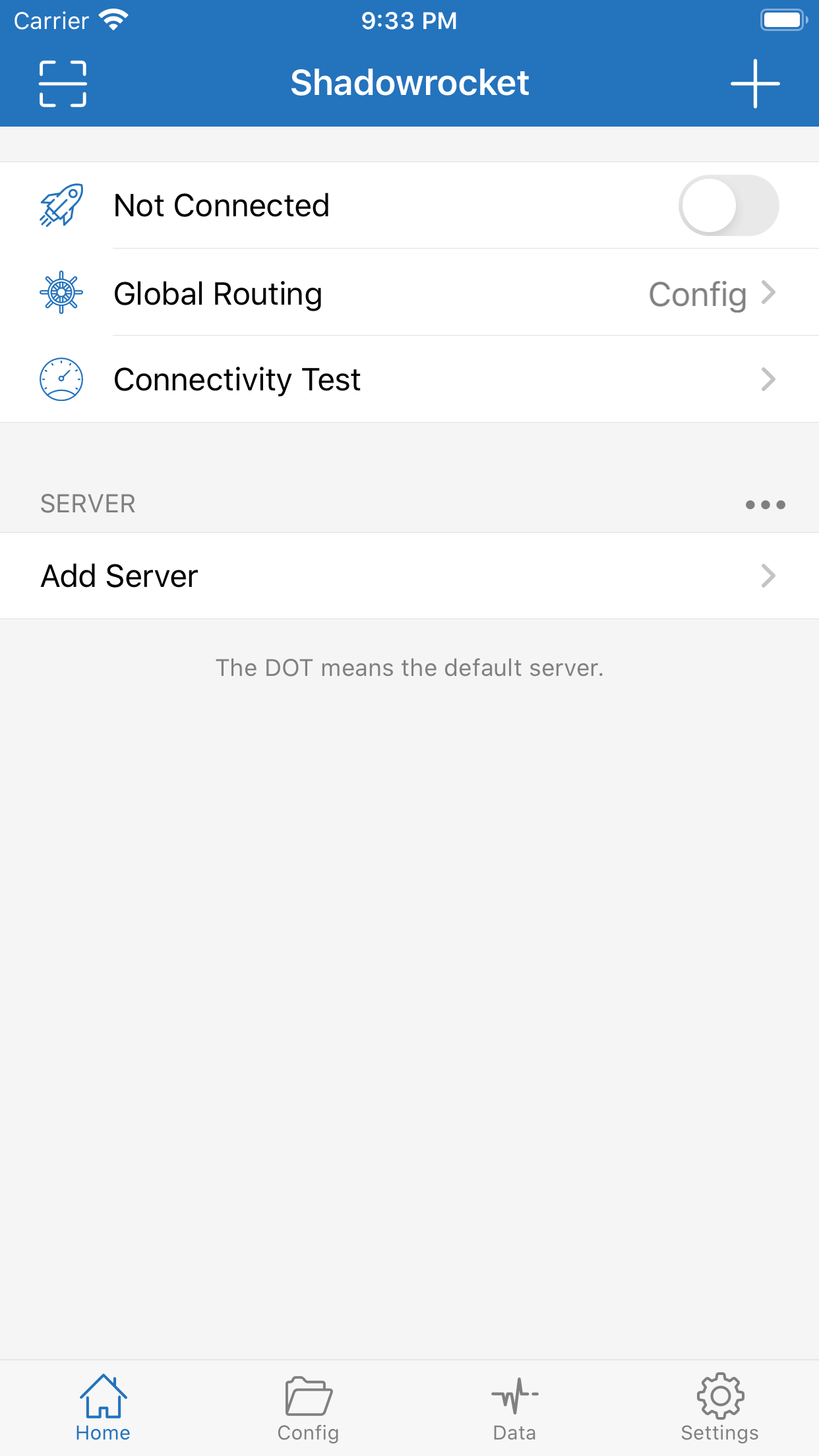
The title bar says Shadowrocket. Scan is on the left; + is on the right. The three rows below are the main controls:
- The first row is Not Connected and the toggle: it only opens or closes the tunnel. It does not care whether a server exists.
- The second row is Global Routing: the current mode follows it, usually Config. Tap it to switch Config / Proxy / Direct.
- The third row is Connectivity Test: it measures reachability to the server, not how fast a site loads.
Below that is SERVER. With no servers it only shows Add Server and the line “The DOT means the default server.” After you add servers, the one with the dot is the default. The “…” on the right is the list menu. You do not need it the first time.
First launch: VPN permission
Without a system VPN configuration, flipping the toggle will not take over traffic.
- Open the app. When iOS asks to add a VPN configuration, tap Allow.
- Confirm with Face ID, Touch ID, or a passcode. iOS is protecting a system slot. This is not an app login.
- Settings → General → VPN & Device Management (the label can vary by iOS version) should list Shadowrocket.
If you tapped Don't Allow: background the app and open it again. iOS usually asks once more. If it still does not: delete the leftover VPN in Settings, then open the app again. If that still fails, confirm the App Store copy and restart the phone.
A successful grant only means the app may build a tunnel. Home should still say Not Connected. Do not turn the toggle on while SERVER is empty.
Add a subscription or server
Ask your provider for the materials. This site does not provide links, QR codes, or addresses. You usually have one of three. Do not mix them:
- A subscription URL: Type = Subscribe.
- A QR code: scan it.
- A set of fields: type them using the protocol they named.
Open the add screen
Tap + in the top right of Home, or Add Server under SERVER. The first field is Type. Change Type before you fill the rest. If Type is wrong, complete fields still will not connect.
How to choose Type
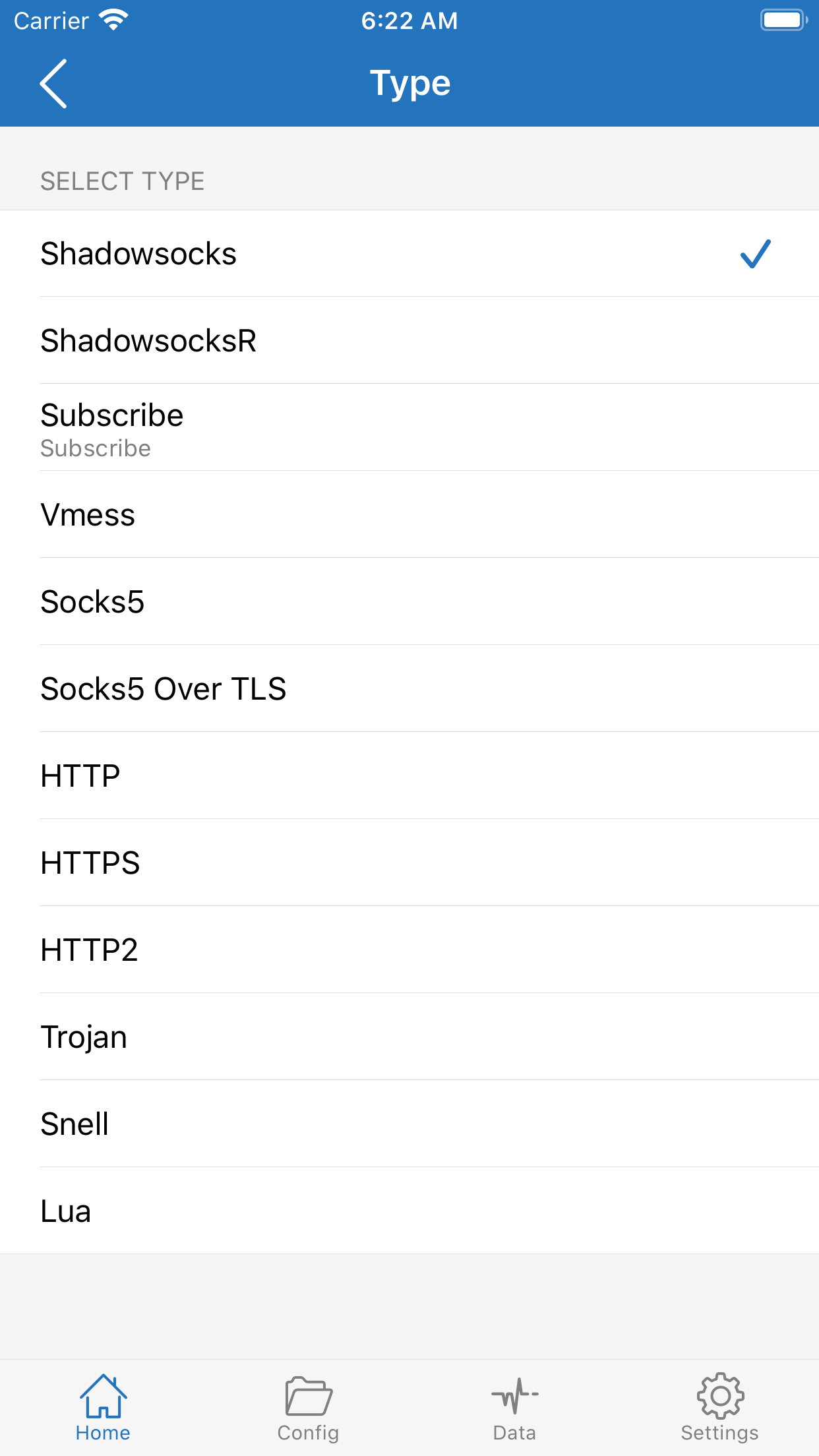
Tap Type to open SELECT TYPE. These are the common rows. Pick only the one your provider named:
- Subscribe: one URL pulls a server list and updates with the subscription. If they gave “one link,” it is almost always this.
- Shadowsocks / ShadowsocksR: a single hand-entered server.
- Vmess, Trojan, Snell: pick the one they wrote.
- Socks5, Socks5 Over TLS, HTTP, HTTPS, HTTP2: common for a gateway or relay. The fields differ. Still follow their table.
- Lua: a script type. You do not need it the first time.
Do not split a subscription URL into Host. Host only accepts a hostname or IP.
Subscribe
Paste the whole URL, put a name you recognize in Remark, and save. Back on Home, SERVER should list a batch of servers. Later adds and removals come from updating the subscription. Do not edit rows by hand. The update control is on the subscription detail or the menu on the right of the SERVER list, depending on the version.
If the subscription is dead, the pull is empty, or names that used to work all fail, ask your provider for a new URL. Do not reinstall the client.
Scan a QR code
Add Server has Scan QR Code below the fields. You can also scan from the left of the Home title bar. Point it at the code from your provider. After the scan, check Type and Host, then save. The code must come from someone you trust.
Type it by hand (Shadowsocks as the example)
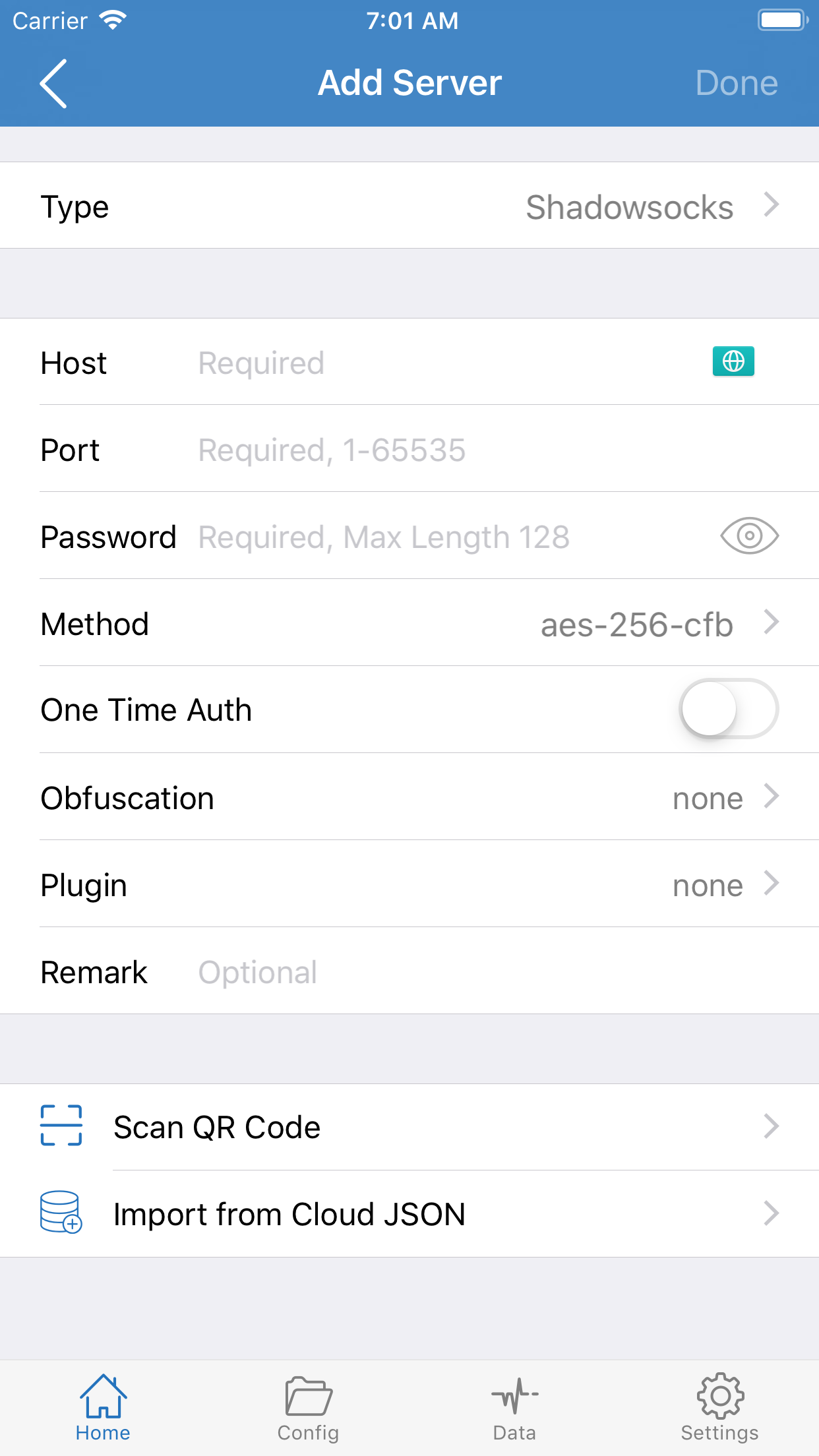
- Host, Port (1–65535), and Password (watch spaces and capitalization).
- Method must match exactly. The UI default may be aes-256-cfb. Change it if theirs is different.
Touch One Time Auth, Obfuscation, or Plugin only if they asked. Otherwise leave them off or none. The Plugin list includes kcptun, v2ray-plugin, cloak, and gost. Leave none unless they named one. Remark is only a display name. Vmess, Trojan, and similar types use different fields (such as UUID). Follow their table. Use Import from Cloud JSON only if they gave that file.
After you add it
SERVER should list one or more rows. The one with the dot is the default. Select a row, then choose a mode. If you still see only Add Server: the save failed, Type is wrong, or the subscription is dead. Do not run a test yet.
How to choose Config, Proxy, or Direct
Tap the second row on Home. You are changing policy, not the selected server.
- Config: route by the current rules. Everyday default. It depends on the file in use on the Config tab (usually default.conf).
- Proxy: send everything through the proxy. Use it to test whether this server works. Do not leave it as the long-term default.
- Direct: send nothing through the proxy. Use it to tell the phone network from the server. Switch back after the comparison.
The first time, use Config. Select a server, then connect. If something fails, compare first. Do not edit rules yet.
Rule files on the Config tab
The second tab is a list of configuration files, not servers. Servers stay under SERVER on Home.
- default.conf: the dot is the default file; the check is the one in use. Keep this file the first time.
- Restore Default Config: put the shipped rules back. Use it after you have edited the file into a mess.
- Add under REMOTE FILES only when your provider gave a rules URL. Do not paste a server subscription here.
- Wi-Fi Upload, Script Subscriptions, and Test Rule are advanced. You can skip them the first time.
Open default.conf and you will see counts for General, Rule, Hosts, URL Rewrite, HTTPS Decryption, and Filter. The shipped file usually already has a batch of Rule rows. You do not need to edit them the first time, and do not turn on HTTPS Decryption.
To see whether a site is blocked by a rule or by the server, switch Proxy or Direct on Home. That is faster than guessing down the rule list.
Connect, then confirm in a browser
Three things must be true before you flip the toggle: a server is selected in the list; Global Routing is set (Config for everyday use); and Settings already has a VPN configuration.
After you flip the toggle, a VPN icon only means the local tunnel is up. You still need a familiar site to open in Safari before it counts as working.
Connectivity Test measures the path to the server: on a timeout or a very high number, change servers first; if the test looks fine but the page still fails, run the Direct comparison. Do not hammer the test.
What to do when Shadowrocket will not connect
Do not reinstall first.
| What you see | Do this first |
|---|---|
| The toggle is on and every page fails | Switch to Direct and open the same site. If Direct also fails, check Wi-Fi / cellular first. |
| Direct works; Config or Proxy fails | Change servers or refresh the subscription. If it still fails, try Restore Default Config. |
| Sites that work without the proxy open; sites that need it do not | The rules are usually fine. Change servers or refresh the subscription first. |
| The test is very high or times out | Change servers. The test is not a specific web page. |
| You cannot add a VPN, or the toggle does nothing | Delete this VPN in Settings, then open the app and grant permission again. Confirm the App Store copy. |
| SERVER still shows only Add Server | The configuration did not save, or the subscription is dead. Go back to “Add a configuration” and check Type. |
| The phone gets hot or the battery drops fast | Switch back to Config, stop hammering tests, and avoid leaving Proxy on for a long time. |
Logs are in Settings → Diagnostics. Turn on Enable Logging, then read VPN Logs. They only describe the local tunnel. They cannot tell you whether a server has expired.
How to take the configuration to a new phone
The third tab is Data. It only moves what this device stored. It does not care whether a server still works.
- iCloud: back up configurations and config files. It may be off by default. Turn it on yourself.
- Export Servers / Import Servers: moves only the SERVER list. Overwrite Server defaults to Off. Before you import, check whether it will replace the current list.
- Delete Local Servers: clears the list on this device. Confirm you already exported, or that the subscription is still available.
- Rule files are handled separately on the Config tab. They do not travel with Export Servers.
On a new phone: install the official app → finish VPN permission → then import or subscribe again. An expired subscription stays expired after you move it. Ask the original provider. Statistics and Logging are local records. You do not need them to switch phones.
When to use Settings
The fourth tab. You can almost leave it alone the first time. Read it by the groups on screen:
- Language: the UI language. Changing it only affects menus. It does not affect the connection.
- Test Method: how Connectivity Test runs. The default, TCP, is enough.
- On Demand: bring the VPN up automatically by network or domain. It also includes Disconnect on Sleep and domain matching. Leave it Off until you understand it, or you will see “I did not flip the toggle, but I am connected.”
- Diagnostics: turn on Enable Logging, then read VPN Logs. They only describe the local tunnel. They cannot tell you whether a server has expired. Leave them off day to day.
- Proxy / TCP / UDP: leave the defaults unless your provider asked.
- Today Widget, Colors, Reminder: interface and alerts. They do not decide whether the web works.
FAQ
Does paying for Shadowrocket include servers?
No. Ask your provider for servers and data.
Why can't I find Shadowrocket in the App Store?
Availability differs by storefront. Search again with an Apple ID registered for another region. Do not install from a file host.
Does Shadowrocket work on Android?
The official app is for iOS and iPadOS only. This purchase does not cover Android.
Why won't pages load when Shadowrocket VPN is on?
It only means the tunnel is up. Switch to Direct first: if Direct also fails, it is the phone network; if Direct works, change servers.
Can I scan a QR code instead of typing fields?
Yes, if the code includes the protocol and fields. Still check Type and Host after the scan.
Do I have to leave it connected?
No. Turn the Home toggle off. With On Demand off, it will not connect by itself.
Do these pages keep a record of my visits?
No. This is a static guide. There is no account and no proxy. Traffic goes only through the server you choose.
Why won't the subscription URL go in?
You probably pasted the full URL into Host. Go back to Type, set it to Subscribe, and paste the URL into the subscription field.
What is the difference between the dot and the check?
On Home, under SERVER, the dot is the default server. On the Config tab, the dot is the default rule file and the check is the file in use. The two marks are not on the same page.
Should I turn Plugin on?
Leave it on none unless your provider named a plugin. Picking kcptun or v2ray-plugin at random usually makes a connection less likely.
If the first connection is not done yet, continue in Get Started. More answers are in the FAQ.